
Payment Guide
This guide explains how to upgrade to PRO and complete payment inside OpenClaw Ultra.
Why Subscribe?
With a single subscription, you get everything you need to start automating — no extra setup, no separate accounts, no API key headaches.
Your Subscription Includes a Premium API Package
- Ready to use — no API key registration, no provider account setup
- Major AI providers covered — access popular models out of the box
- Instant start — deploy and automate in minutes, not hours
- Automatic updates — new models and providers added continuously
Subscription vs. Own API Keys
| Subscription (Premium API Package) | Own API Keys | |
|---|---|---|
| Setup | None — ready to use | Register keys per provider |
| Billing | Single subscription | Pay per provider separately |
| Providers | Major AI providers included | Only the ones you register |
| Best for | Quick start, hassle-free | Full control, specific needs |
Subscription Expiration
Your deployment is permanent — it stays valid even if your subscription expires. When it does, you can either renew to keep the Premium API Package, or switch to your own API keys at no extra cost. See Register API Keys for the self-service setup guide.
How to Pay (Step-by-Step)
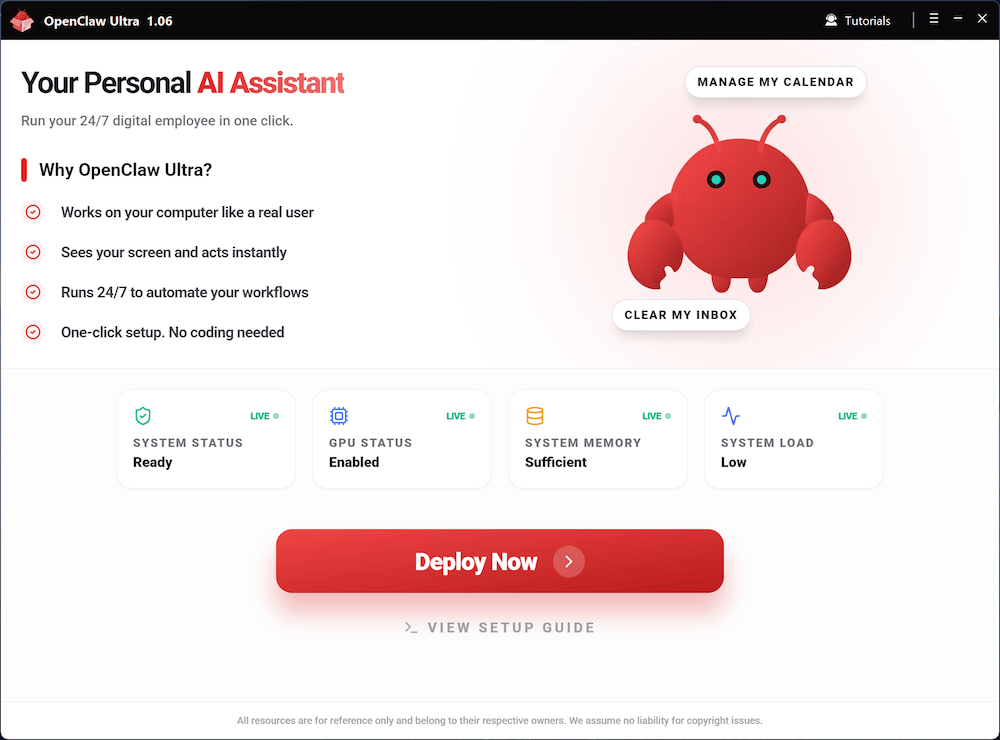
- Open the OpenClaw Ultra
- Click
Deploy Now - Confirm your plan and price
- Choose a payment method and complete checkout
- Start OpenClaw Automation
Supported Payment Methods
- Credit/Debit Card
- PayPal
After Payment
- Your PRO features should unlock immediately
- If it doesn’t refresh, restart OpenClaw Ultra and open the upgrade screen again
Troubleshooting
Payment succeeded but PRO not unlocked
- Restart OpenClaw Ultra
- Ensure you’re on the same device where you completed payment
- Check your network connection and try again from the upgrade screen
Card declined / PayPal error
- Try a different payment method
- Verify billing address and available balance
- Contact your bank or PayPal support if needed
Contact Support
Naviate to More Menu → Contact Us
Manage Subscription
To cancel or manage your subscription, go to www.aiondesktop.com → Cancel Subscription → Enter PayPro Order number. Your deployment remains valid after cancellation — you can switch to your own API keys anytime.
Related Guides
- Install and trigger the upgrade prompt: Start Deployment