
Switch Models
OpenClaw lets you switch between different AI models at any time during your chat session. This guide shows you how to change models on the fly.
Prerequisites
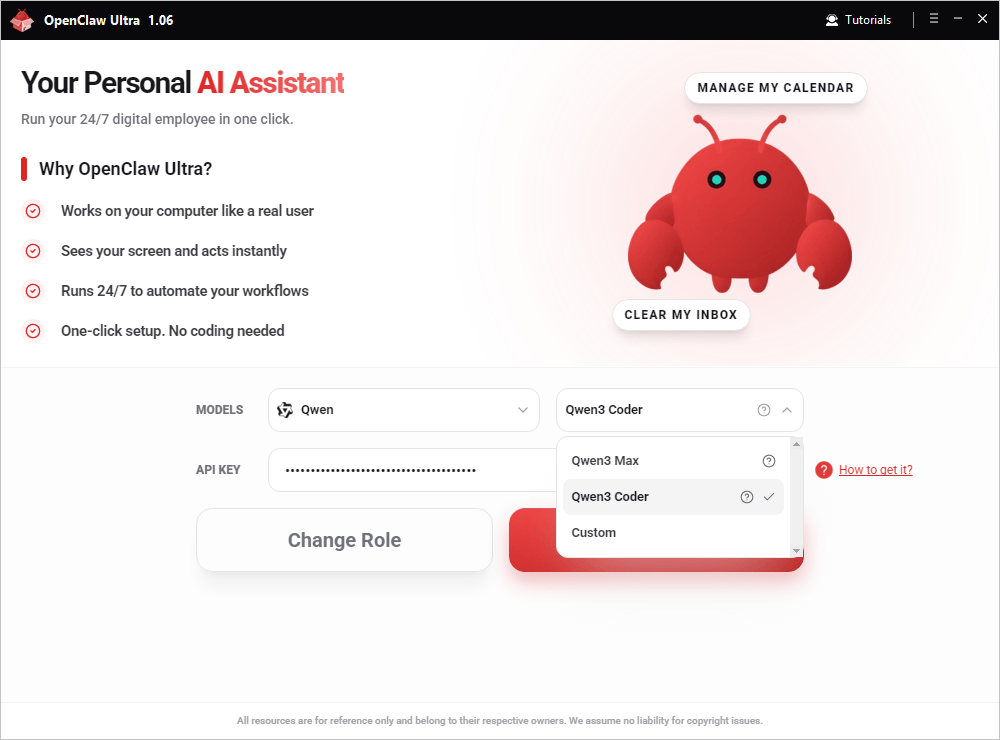
You need to have completed deployment first (Start Deployment). Model switching is available on the Start Automation screen after deployment.
- Subscribed users: your Premium API Package covers major providers — just pick a different model from the dropdown, no extra setup needed.
- Own API key users: you'll need to register an API key for each provider you want to switch to. See Register API Keys.
Why Switch Models
Different models excel at different tasks. You might want to switch models to:
- Use a more powerful model for complex reasoning tasks
- Switch to a faster model for quick questions
- Try different providers for cost optimization
- Test model capabilities for your specific use case
How to Switch Models
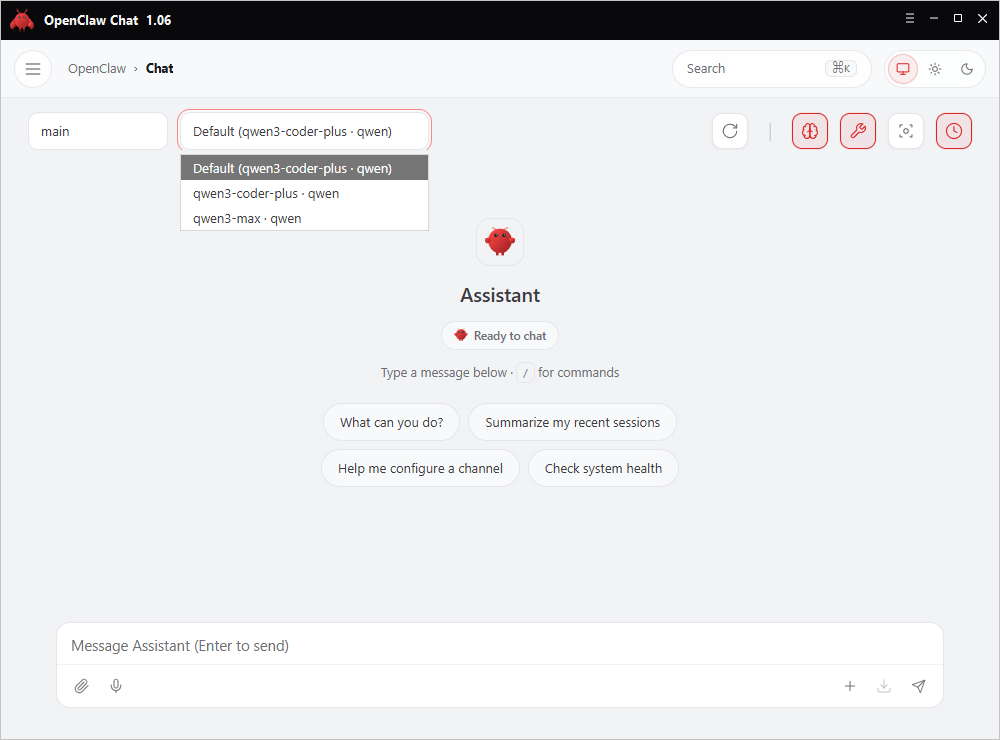
In the chat interface, click on the current model name displayed at the top of the chat area (next to the channel name).
INFO
If you only see one model in the dropdown:
- Subscribed users: your plan may not cover that provider — check your subscription details.
- Own API key users: go back and configure additional API keys for the models you want to use.
Tips
- Model switching only affects new messages—previous conversation history remains unchanged
- You can switch models as many times as needed during a session
- If a model is unavailable, subscribed users should check subscription coverage; own API key users should verify the corresponding API key is configured in settings
- The default model setting persists across sessions
Related Guides
- Configure API keys: Register AI API Keys
- Deploy your agent: Start Deployment
- Create custom skills: Pro Ways to Create Skills